Now Reading: A step‑by‑step tutorial on generating stunning AI art
-
01
A step‑by‑step tutorial on generating stunning AI art

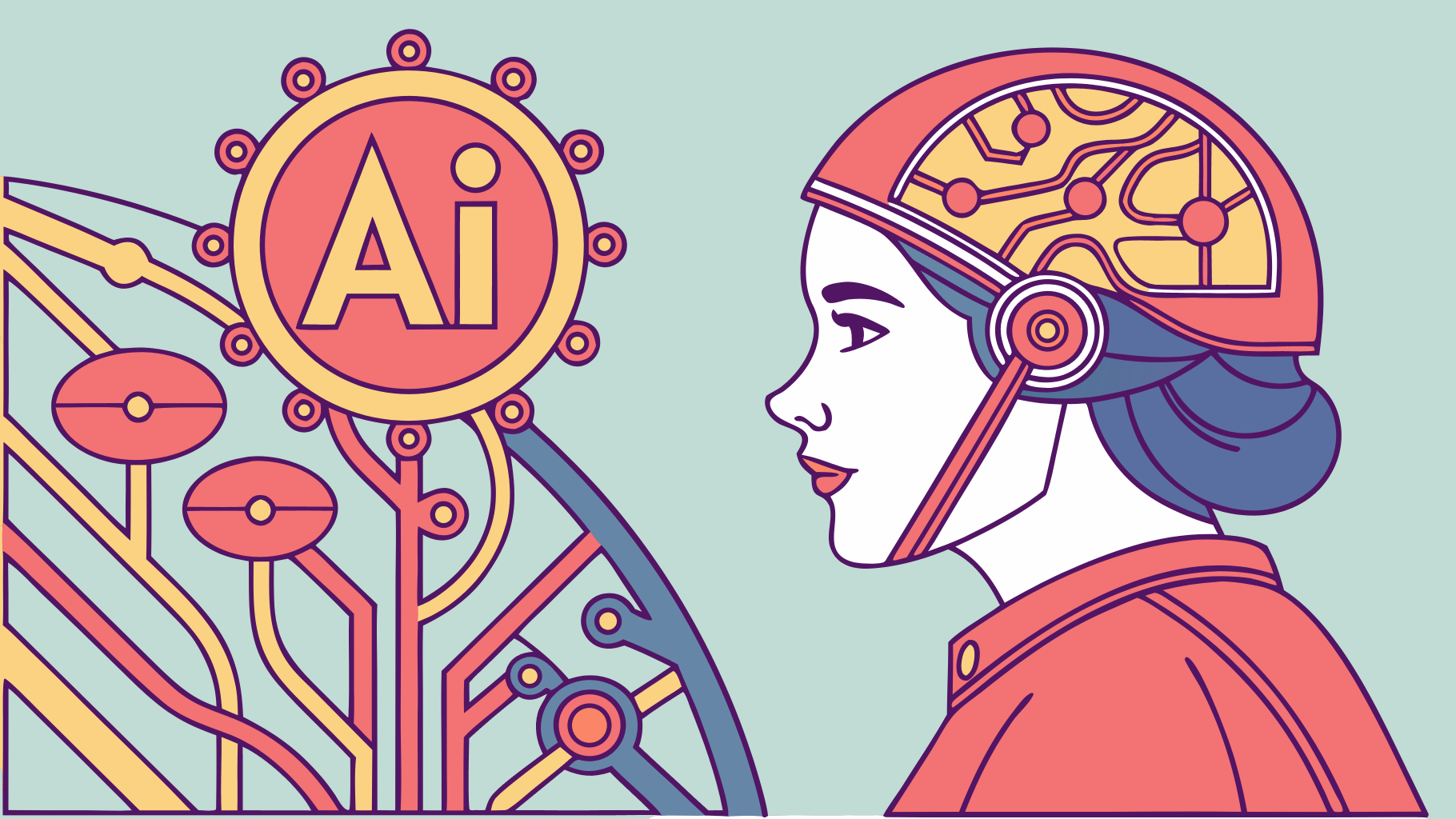
AI image generation has turned anyone with an idea and an internet connection into a potential visual artist. Instead of brushes or a camera, you describe what you want in words and an AI model paints it for you. This guide walks from absolute zero no tools, no jargon to your first polished, share‑worthy AI artwork.
Step 1: Understand what AI art really is
AI art is created by generative models trained on huge datasets of images and captions. You feed the model a “prompt” (a text description), and it predicts what such an image should look like, pixel by pixel.
The important thing to realize is that the model is not “copying” a single image from its training set; it learns patterns like shapes, colors, and styles, then recombines them in new ways. Your job is to steer that process through language.
Think of the AI as a hyper‑literal illustrator that only understands the words you give it. Vague prompt, vague result. Clear, detailed prompt, controlled and often stunning result.
Step 2: Choose the right AI art tool
There are dozens of generators, but most fall into three categories:
- Web‑based generators
These run entirely in the browser. You just create an account and start typing prompts. Examples include many commercial “text‑to‑image” services.- Pros: No setup, beginner‑friendly interface, usually offer style presets and aspect ratios.
- Cons: Limited free credits, less control over advanced parameters.
- Discord‑ or chat‑based tools
Some popular platforms run inside chat apps. You type commands like/imaginefollowed by your prompt, and the bot replies with images.- Pros: Great community examples, fast feedback, lots of tutorials.
- Cons: Can feel noisy and confusing at first; requires learning simple commands.
- Local or open‑source tools
These run on your own computer or via community web UIs around models such as Stable Diffusion.- Pros: Maximum control, no per‑image fee, custom models and fine‑tuning.
- Cons: More technical setup, often need a decent GPU, more knobs to learn.
If you are truly starting from zero, pick a simple web‑based or chat‑based tool with a generous free tier. Later, when you care about fine‑tuning characters, training on your own photos, or commercial workflows, you can move to heavier tools.
Step 3: Learn the prompt formula
Great AI art starts with great prompts. A simple but powerful formula is:
Subject + Style + Details + Context + Technical Hints
- Subject: What is the main thing in the image?
- “A silver futuristic jet”, “an ancient banyan tree”, “a portrait of a pilot”.
- Style: How should it look?
- “cinematic,” “watercolor illustration,” “hyper‑realistic photography,” “pixel art,” “anime style”.
- Details: Colors, lighting, mood, camera angle, composition.
- “golden hour lighting,” “dramatic shadows,” “wide‑angle shot,” “close‑up”.
- Context / Setting: Where and when it happens.
- “in a cyberpunk city,” “on Mars at sunrise,” “inside a 1940s hangar”.
- Technical hints: Optional guidance the model understands.
- “8k resolution,” “highly detailed,” “sharp focus,” “bokeh background”.
Example prompt using the formula:
“A silver futuristic fighter jet taking off from an aircraft carrier at sunrise, cinematic, ultra‑detailed, warm golden lighting, clouds of sea mist, wide‑angle shot, high resolution.”
Compare that with the vague version:
“Jet taking off.”
The first prompt almost always produces richer, more controllable results.
Step 4: Start with simple experiments
Open your chosen generator and start with 5–10 small experiments:
- Basic subject only
- Prompt: “A red sports car.”
This shows what the default style of the tool looks like.
- Prompt: “A red sports car.”
- Add style
- Prompt: “A red sports car, watercolor painting.”
Notice how the same subject changes when you tweak style words.
- Prompt: “A red sports car, watercolor painting.”
- Add lighting and mood
- Prompt: “A red sports car at night in the rain, cinematic lighting, reflections on wet asphalt, dramatic mood.”
- Add camera / composition hints
- Prompt: “Low‑angle close‑up of a red sports car drifting through a corner, motion blur, cinematic, high detail.”
Each time, observe how changing a small part of the text changes the output. This trial‑and‑error loop is how your “prompting intuition” develops.
Step 5: Use negative prompts and constraints
Most modern generators support “negative prompts” or options to specify what you do not want.
Common problems and fixes:
- Extra fingers or distorted hands:
- Negative prompt: “no extra fingers, no deformed hands, anatomically correct hands”.
- Blurry, low‑detail faces:
- Add: “sharp focus, detailed face, 8k, ultra‑realistic”.
- Negative: “no blur, no distorted face”.
- Random text and logos in the background:
- Negative: “no text, no watermark, no logo”.
If your tool exposes parameters like CFG scale or guidance scale, higher values make the image follow the prompt more strictly, while lower values give more creative freedom. Begin with the default and adjust slightly if the model drifts too far from your instructions.
Step 6: Iterate like an artist, not a slot machine
It is tempting to spam “Generate” until something good appears, but you get better results by iterating systematically.
A good loop looks like this:
- Generate 4 images with a solid prompt.
- Pick the closest one to your mental image.
- Make a small change to the prompt, not 10 new ideas at once:
- Add one adjective: “dramatic,” “minimalist,” “neon‑lit”.
- Change camera angle: “top‑down view,” “over‑the‑shoulder shot”.
- Slightly adjust color: “cool blue tones,” “warm orange palette”.
- Regenerate with variations or “upscale” the best candidate.
Keep a simple log or notes file with your best prompts. Over time, this becomes your personal palette of styles and tricks.
Step 7: Compose for impact
Even with perfect prompts, composition matters. You can guide composition using words:
- Rule of thirds / centered:
- “subject centered,” or “subject on the left third, open space on the right.”
- Foreground and background:
- “misty forest in the background, detailed flowers in the foreground.”
- Depth and scale:
- “tiny astronaut standing before a colossal ancient statue, extreme scale contrast.”
For portraits, specify:
- “head‑and‑shoulders portrait,” “full‑body shot,” “close‑up of the face,” or “profile view.”
For landscapes:
- “sweeping panoramic view,” “aerial shot,” “wide shot showing the entire valley.”
These phrases help the model arrange elements in the frame, not just invent them.
Step 8: Refine with basic editing
Most AI outputs still benefit from light post‑processing. You don’t need to be a Photoshop wizard; even simple tools can polish your images.
Useful quick edits:
- Crop and straighten: Focus on the most interesting part of the generation.
- Adjust exposure and contrast: Make colors pop or achieve a softer, pastel mood.
- Color grading: Use LUTs or filters to enforce a consistent tone across a series.
- Remove small artifacts: Clone or heal odd pixels, halos, or glitches.
Many AI art tools now offer integrated editing: inpainting (paint over a region and regenerate just that part), background removal, and upscaling to higher resolutions. Use these like you would fine‑tuning a painting small, targeted changes rather than throwing everything away.
Step 9: Develop a consistent style
Once you are comfortable generating single images, the next level is consistency. This matters for comics, product catalogs, character design, or a coherent Instagram feed.
You can approach style consistency in several ways:
- Prompt templates
- Reuse the same structure and style phrases, changing only subject or minor details.
- Example base: “cinematic, volumetric lighting, high contrast, 35mm photograph, shallow depth of field, 8k, richly detailed.”
- Fixed color palette
- Always include phrases like “teal and orange color palette,” “pastel pinks and blues,” or “muted earth tones.”
- Character anchors
- Describe a character with repeated key traits:
- “young woman with short silver hair, round glasses, denim jacket,” etc.
- Later prompts reuse those anchors: “the same character, now standing on a rooftop at night…”
- Describe a character with repeated key traits:
- Custom models or LoRAs (advanced)
- Some platforms let you train lightweight add‑on models on a small set of your own images to lock in a specific face, product, or style.
- This is optional early on but powerful once you have recurring characters.
Step 10: Mind ethics, copyright, and usage
As you generate more polished art, you will naturally think about sharing, selling, or using it commercially. A few important points:
- Read the terms of your chosen tool.
Some allow commercial use of generated images; others restrict it based on subscription level or context. - Be transparent.
When posting online, clearly label your work as AI‑assisted or AI‑generated. This avoids confusion and sets proper expectations. - Respect other artists.
Avoid using prompts like “in the style of [living artist]” for commercial work, even if the platform allows it. It is better practice to describe styles abstractly (e.g., “impressionist oil painting,” “comic book line art”) than to piggyback on a specific name. - Protect privacy.
Do not generate images that realistically depict private individuals without their consent, especially in sensitive contexts.
Used thoughtfully, AI art can augment human creativity, not replace it. Treat it as a new medium, like photography was when it first appeared.
Step 11: Build a workflow from idea to final Image
To tie everything together, here is a simple end‑to‑end workflow you can follow for each new piece:
- Brainstorm and sketch in words
- Write a one‑sentence concept: “A lone pilot walking through a neon‑lit rain‑soaked alley after a mission.”
- Expand into a detailed prompt using the formula (subject, style, details, context, technical hints).
- Generate a first batch
- Create 4–8 images from that prompt.
- Mark the best 1–2 that are closest to your vision.
- Refine with prompt tweaks
- Add or remove 1–2 adjectives; adjust lighting, angle, or color palette.
- Use negative prompts to remove issues you see.
- Upscale and clean
- Use built‑in upscalers and artifact removal, then export at high resolution.
- Do light post‑processing in your favorite editor.
- Curate and present
- Pick the single strongest piece or a small series that tells a story.
- Add a title and short description when posting so viewers understand the concept.
Following the same steps every time turns AI art from random experimentation into a reliable creative pipeline.
Generating stunning AI art is not about secret parameters or magical tools; it is about clarity of vision, careful prompting, and patient iteration. From zero knowledge, you can reach impressive results by:
- Understanding how text‑to‑image models think in terms of patterns.
- Choosing a beginner‑friendly tool and learning its basic controls.
- Using a structured prompt formula instead of random phrases.
- Iterating, editing, and curating like a traditional artist would.
Start small: pick one idea today, open a generator, and walk through the steps in this guide. By the time you have created your first series of images, you will no longer feel like a beginner you will be well on your way from zero to image.